









































































































































































































Mela
eSIM for iPhone
47 models listedeSIM compatible
eSIM compatible Devices – iPhones
iPhone
33 modelsiPhone 17
5 models
iPhone 17
eSIM compatible
iPhone 17 Plus
eSIM compatible
iPhone 17 Pro
eSIM compatible
iPhone 17 Pro Max
eSIM compatible
iPhone 17 Air
eSIM compatible
iPhone 16
4 models
iPhone 16
eSIM compatible
iPhone 16 Plus
eSIM compatible
iPhone 16 Pro
eSIM compatible
iPhone 16 Pro Max
eSIM compatible
iPhone 15
4 models
iPhone 15
eSIM compatible
iPhone 15 Plus
eSIM compatible
iPhone 15 Pro
eSIM compatible
iPhone 15 Pro Max
eSIM compatible
iPhone 14
4 models
iPhone 14
eSIM compatible
iPhone 14 Plus
eSIM compatible
iPhone 14 Pro
eSIM compatible
iPhone 14 Pro Max
eSIM compatible
iPhone 13
4 models
iPhone 13 mini
eSIM compatible
iPhone 13
eSIM compatible
iPhone 13 Pro
eSIM compatible
iPhone 13 Pro Max
eSIM compatible
iPhone 12
4 models
iPhone 12 mini
eSIM compatible
iPhone 12
eSIM compatible
iPhone 12 Pro
eSIM compatible
iPhone 12 Pro Max
eSIM compatible
iPhone 11
3 models
iPhone 11
eSIM compatible
iPhone 11 Pro
eSIM compatible
iPhone 11 Pro Max
eSIM compatible
iPhone XS, XS Max & XR
3 models
iPhone XR
eSIM compatible
iPhone XS
eSIM compatible
iPhone XS Max
eSIM compatible
iPhone SE
2 models
iPhone SE (2nd generation)
eSIM compatible
iPhone SE (4th Generation – 2026)
eSIM compatible
iPad
14 modelsiPad Pro
6 models
iPad Pro 11 (1st generation)
eSIM compatible
iPad Pro 12.9 (3rd generation)
eSIM compatible
iPad Pro M1
eSIM compatible
iPad Pro M2
eSIM compatible
iPad Pro M3 (2025)
eSIM compatible
iPad Pro M4
eSIM compatible
iPad Air
3 models
iPad Air (3ª generazione)
eSIM compatible
iPad Air M1
eSIM compatible
iPad Air M2
eSIM compatible
iPad & iPad Mini
5 models
iPad (settima generazione)
eSIM compatible
iPad (10th generation)
eSIM compatible
iPad (11th generation)
eSIM compatible
iPad Mini (quinta generazione)
eSIM compatible
iPad Mini (sesta generazione)
eSIM compatible
No matching model in this list.
The eSIM feature allows you to activate a cellular plan from a carrier without using a physical SIM card. It is embedded in the phone itself—all iPhone models from the iPhone XR and newer support eSIM functionality. Older iPhones like the iPhone X and below still require the traditional physical SIM.
How do I use eSIM on my iPhone?
eSIMs, or embedded SIMs, allow iPhone users to connect to cellular networks without the need for a physical SIM card. With this method, the eSIM profile containing your cellular plan information is downloaded digitally.
eSIMs were first debuted with the iPhone XS, XS Max, and XR models. All newer iPhones support eSIM functionality.
To use an eSIM on your iPhone, you must first purchase a cellular plan from a carrier that provides eSIM service. You will receive a QR code and details for manual installation by email to add the eSIM profile to your iPhone. Once activated, you can manage your cellular plans through the Cellular Data settings on your iPhone. eSIMs make switching carrier plans easier, and even include the ability to contain multiple phone numbers.
How to set up an eSIM on your iPhone
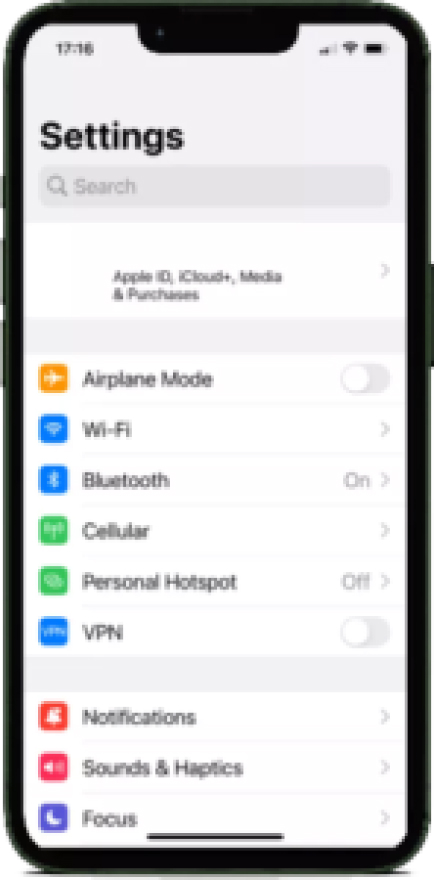 1
1On your iPhone home screen, click on “Settings” >> “Cellular” >> “Add eSIM”
 2
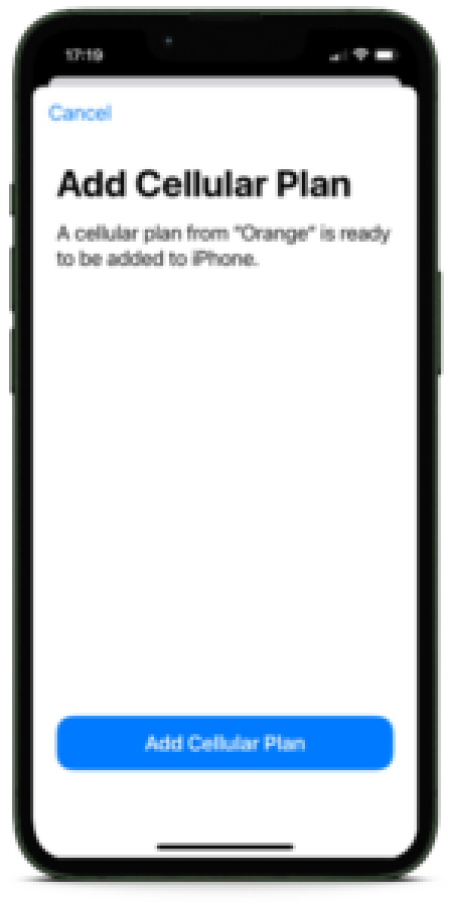
2Select “Use QR Code’”
 3
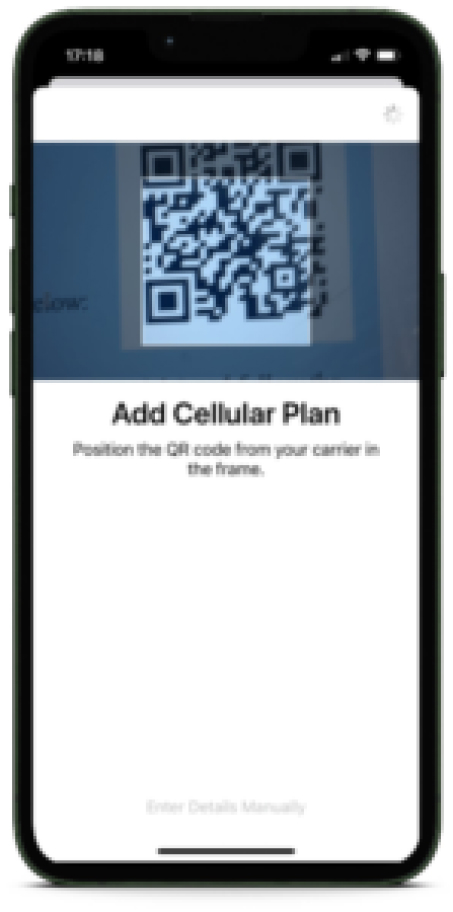
3Your camera will open. Scan the QR code you received from your eSIM provider, or click “Enter Details Manually” to add the SMDP+ and Activation Code manually
 4
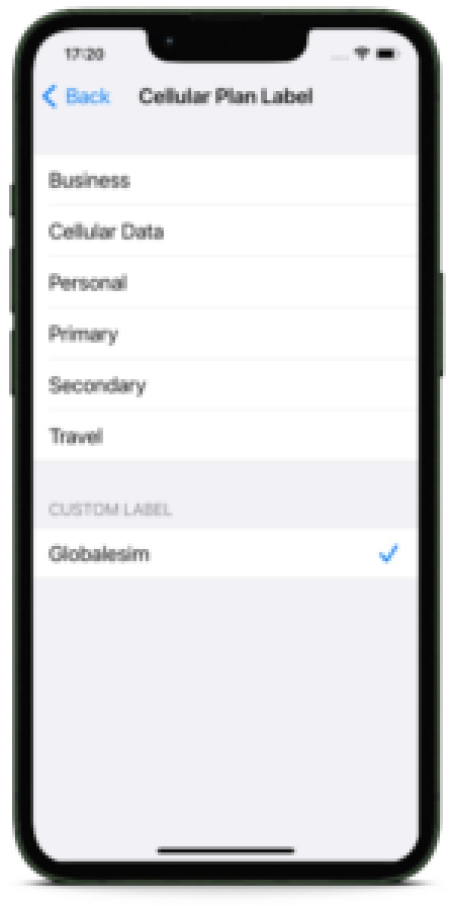
4Upon installation, you can label your new eSIM line as “Secondary”, “Business line”, or “Travel” as an identifiable name for your new eSIM line.
 5
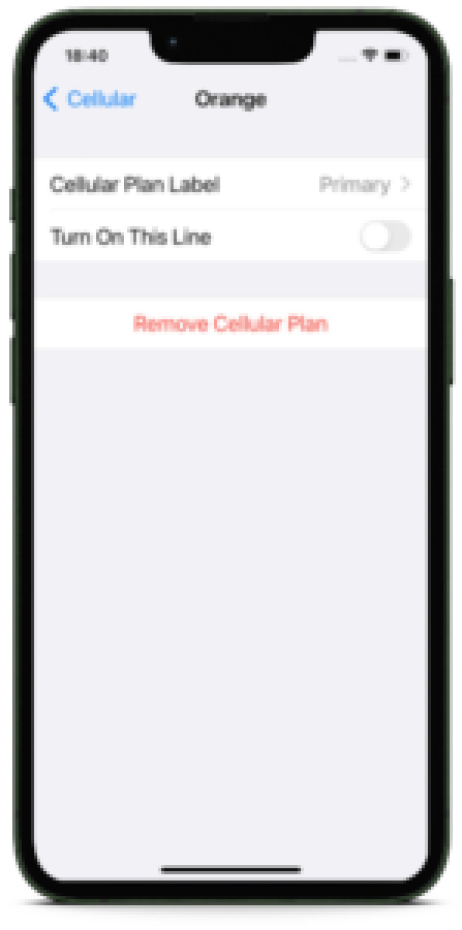
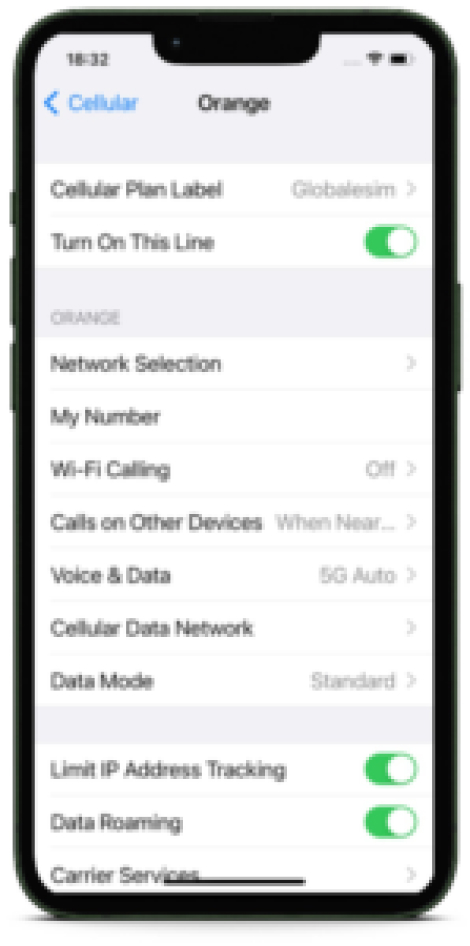
5Verify a new line was added in “Settings” >> “Cellular” Menu
 6
6You now can turn ON / OFF your new eSIM line with a click.
 7
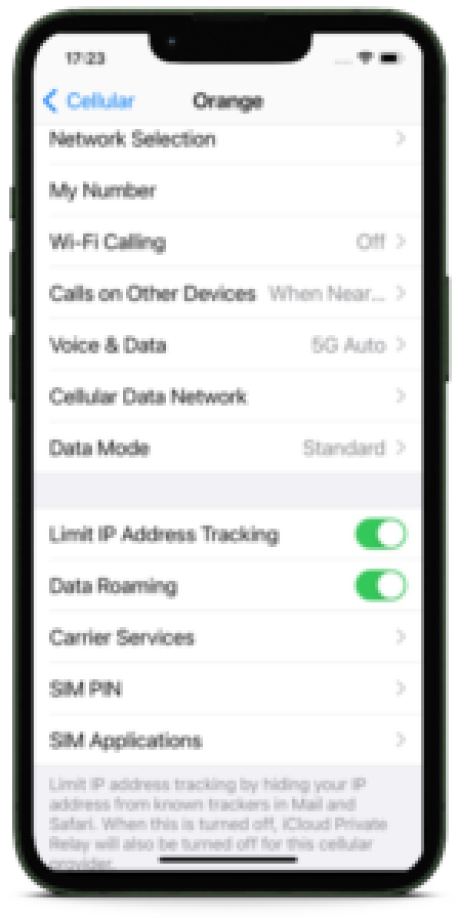
7If you are using your eSIM for international roaming, don’t forget to turn on “Data Roaming” to use data connectivity while abroad.
eSIM iPhone FAQ
How to purchase an eSIM for my iPhone?
Purchasing your eSIM is a relatively straightforward process:
- Select the country or region where you would like to use the service
- Choose the amount of data you would like your plan to have
- If applicable, add a supplementary Voice Minute plan in addition to the Data plan you have already selected
- Press “Buy Now” or “Complete Purchase” to go to the purchase page
- Include the required personal details on the purchase page
- Choose your payment method
- Press “Place Order” or “Complete Order”
If done correctly and your purchase goes through, you should expect to receive your eSIM and plan details via email
Indeed, purchasing your eSIM is just as simple as that!
How can I tell if my iPhone is compatible?
The easiest way to check if your iPhone model supports eSIM is to go to Settings > General > About. Look at the Model Name to see which iPhone you have. iPhones XS and newer are eSIM compatible.. Specifically, the iPhone XS, XS Max, XR, 11 series, SE 2nd gen, 12 series, 13 series, 14 and 15 series are all eSIM compatible. . Older models like the iPhone X as well as other prior models do not support eSIM.
You can also check Apple’s support page for a complete list of eSIM-compatible iPhone models. If you have an iPhone XR or later, your device can use eSIM cellular plans without needing a physical SIM card. This will allow for more flexibility in managing plans by having a dedicated line in addition to your primary one, one that gives you the freedom to add a cellular plan from any carrier that supports eSIM coverage. As a result, you will avoid expensive roaming charges when traveling abroad.
Can eSIMs work without an internet connection?
To download an eSIM profile (by scanning the QR code or by manually typing out the eSIM details), an internet connection on your iPhone is required (using your mobile data from your local carrier or any Wifi connection). Upon completing installation you will be able to use your eSIM line’s data connection for mobile data features like web browsing or apps that require an active cellular data connection.
How many eSIMs can be used on an iPhone?
The latest iPhones support having two active eSIM cellular plans simultaneously. You can have service from two different carriers simultaneously by downloading two eSIM profiles. For example, you can have one eSIM for your regular cell phone plan and a second eSIM for data only when traveling abroad. The dual eSIM capability allows for flexibility when managing multiple phone numbers and carrier plans on one iPhone. However, only one eSIM can be enabled for both cellular data and phone calls simultaneously. To do so, you will manually need to switch between the two eSIM profiles in settings to change the active cellular plan. So, while two eSIMs are supported, only one can actively connect your iPhone to a carrier network at a time. The second one must still be your primary SIM usually provided by your local carrier.
Can two iPhones use the same eSIM?
The same eSIM cellular plan cannot be actively used on two different iPhones simultaneously. When you download an eSIM profile, it is linked to the unique ID of that specific device. However, you can reuse an eSIM on a new iPhone if you delete the eSIM plan from the first or initial device it was installed on.. To use the same cellular plan on two iPhones simultaneously, you will need separate eSIM profiles, even if they are on the same carrier. Each device requires its own unique eSIM profile downloaded and activated. While it’s possible to transfer an eSIM from one iPhone to another, the same eSIM profile cannot be used on two iPhones concurrently. You’ll need distinct eSIMs, just like physical SIM cards.
Can I use my eSIM for phone calls?
You have two main options if you would like to use Voice Service with your eSIM:
- Keep your local carrier line ON, in addition to the eSIM line you have just installed. This will allow you to have a fully functional personal phone number, as well as an additional eSIM line. Then, you can toggle between the “Default Voice” line and the “Mobile Data” line and decide which one you would like to use.
- Find an eSIM that supports Voice Service. To use the Voice Service, you will be issued a temporary phone number in addition to your one. This new temporary number will allow you to affordably make and receive phone calls while abroad (as opposed to the steep rates when purchasing a roaming plan from your primary or local carrier).
Dispositivi compatibili
Once your device is confirmed as eSIM compatible, you can purchase your plan, install your eSIM and get connected in just a few simple steps.