










































































































































































































Welcome to the eSIM revolution where you can add a cellular plan or a new provider without an actual SIM card On Samsung 20+ or later
Step 1
Open the PDF file that you received from Globalesim.app by Email

Step 2
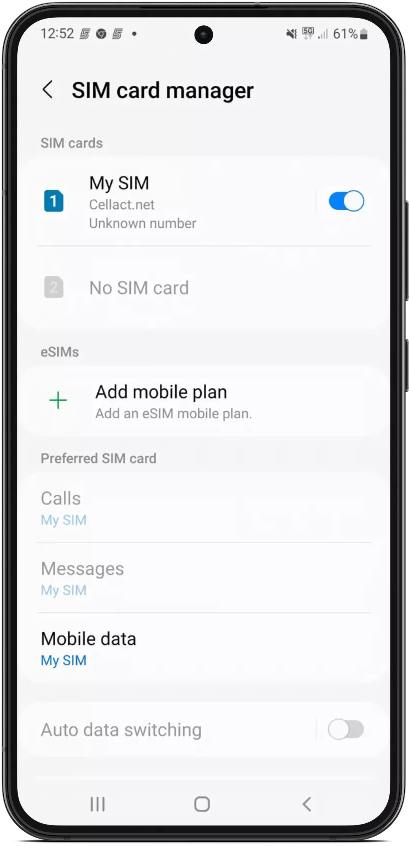
Go to “Settings” >> ” Connections” >> ” SIM Card Manager” >> Add Mobile Plan

Step 3
Click on “Scan carrier QR Code”, scan the QR code and follow the instructions on your device

Step 4
Tap on “add cellular Plan” or “add data plan”
Step 5
You can set a personal name for your new eSIM line, for example: “Business Line, “Travel”, etc

Step 6
Go back to the main Settings screen >> “Mobile Network” >> make sure “Data Roaming” is turned ON

Other Important Actions:
1. When arriving to the destination, turn OFF your “primary” line (in case you don’t want to use it abroad) and turn ON your new eSIM line.

2. Make sure ‘Data Roaming’ is set to ON

Se puede contactar con nuestro Centro de Atención al Cliente
directamente a través del chat en vivo, al que se puede acceder desde
haciendo clic en el cuadro de mensaje redondo y azul ubicado en el
en la esquina inferior derecha de nuestra página web o por correo electrónico
en info@globalesim.app
Que tengas un buen viaje
Equipo de Globalesim

Preguntas frecuentes
Open the PDF received from Globalesim.app by email, then go to Settings, Connections, SIM Card Manager, and Add Mobile Plan. Tap Scan Carrier QR Code, scan the code, and follow the on-screen instructions. Then tap Add Cellular Plan or Add Data Plan, and optionally give the new line a personal name such as Travel or Business Line to keep it organized.
Yes. After installation, go back to the main Settings screen, select Mobile Network, and make sure Data Roaming is turned on for the new eSIM line. Without this setting enabled, the eSIM typically won't connect to local partner networks abroad, even though the plan itself has already been activated and installed correctly.
If you don't want to use your primary line while traveling, turn it off upon arrival at your destination and switch on your new eSIM line instead. Also double-check that Data Roaming remains set to on for the eSIM line, since this is what allows it to connect to local networks at your destination without you needing a physical SIM swap.
GlobaleSIM's Customer Support Center is available via live chat, accessible through the round blue message box at the bottom right of the Globalesim.app website, or by emailing info@globalesim.app. Support can walk you through the QR code scanning, SIM Card Manager settings, or Data Roaming toggle if the eSIM isn't activating as expected on a Samsung Galaxy S20 or later device.
Consigue las guías de viaje de GlobaleSIM primero en las noticias principales de Google.